
You took a great photo on your vacation but bummed because there’s a small distraction? There’s a stranger walking through the background, a crowd behind your subject, or there’s something you simply don’t want in the frame. If you learn how to remove people from pictures, you won’t have to worry about this frustrating thing anymore.
From travel photography to wedding pictures, cute anniversary moments, product listings and social media content, clean visuals matter more than ever. With the right AI photo editing tool like Blend, removing unwanted people from photos can take less than a minute. Let’s find out how you can do that easily using Blend app for Apple and Android.
1. Upload your image
To start learning how to remove people from pictures, the first step is simple. You just have to upload your photo to Blend app’s Magic Eraser.
Once your image is uploaded, the editor immediately guides you with two quick tips that will help you remove unwanted people from photos accurately, easily, and efficiently.
Tip 1: Circle to Erase
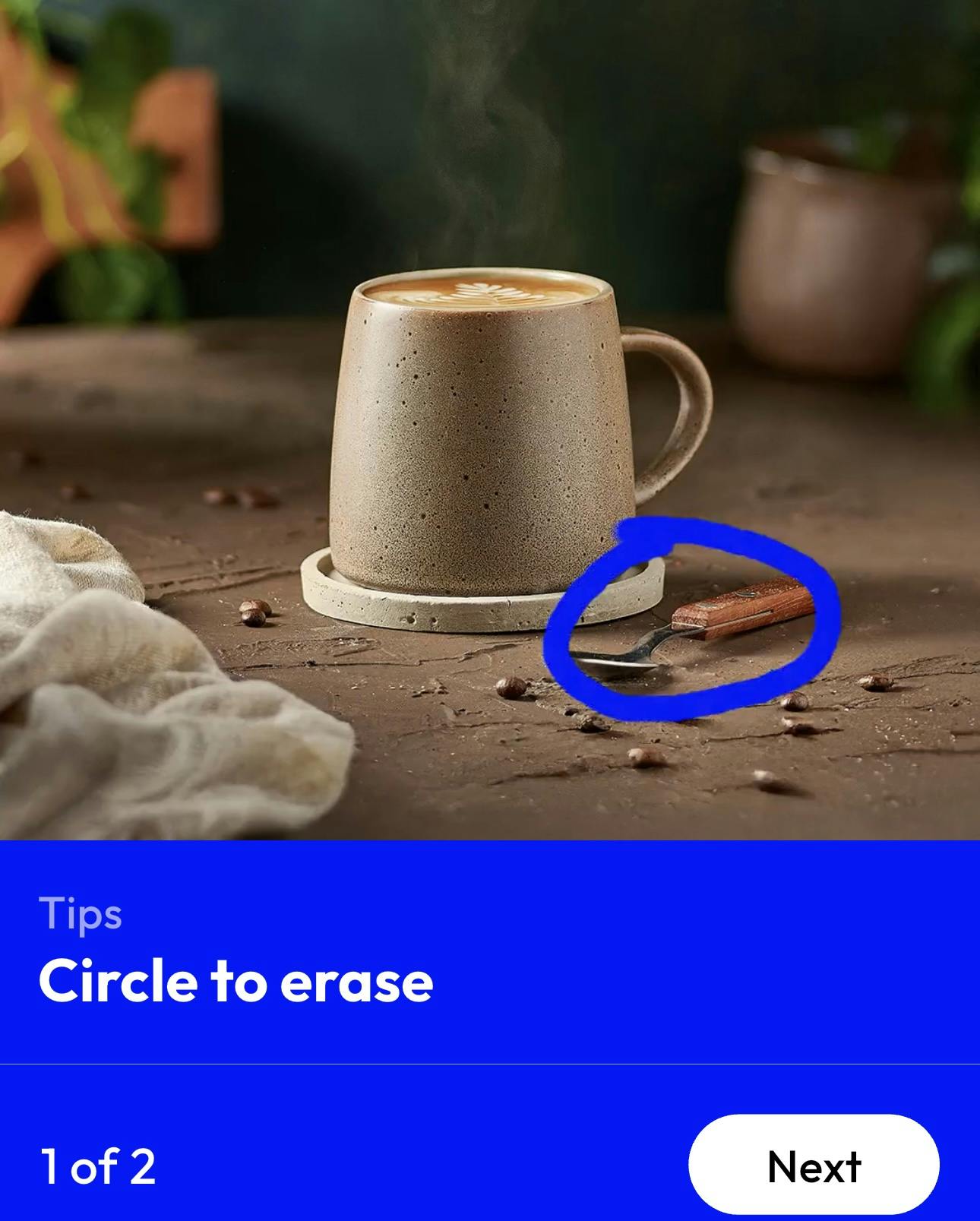
You can circle the person, object, or distraction you want removed. This works especially well when you need to remove someone from a photo quickly without selecting small details manually.
Simply draw around the unwanted subject, and the AI people remover will analyze the selected area. The tool then performs automatic people removal from photos by reconstructing the background naturally.
Tip 2: Scribble Over the Area

If the shape is more complex and you aren’t able to circle it properly, you can scribble directly over the person you want to erase. This scribbling over method gives you more flexibility, especially when removing multiple people or overlapping elements.
The Magic Eraser AI photo editing tool detects your markings and fills the selected area without ruining the picture.
2. Circle or Scribble to Remove Unwanted People
Now comes the satisfying part. Once your image is uploaded, you simply mark what you don’t want in the frame.
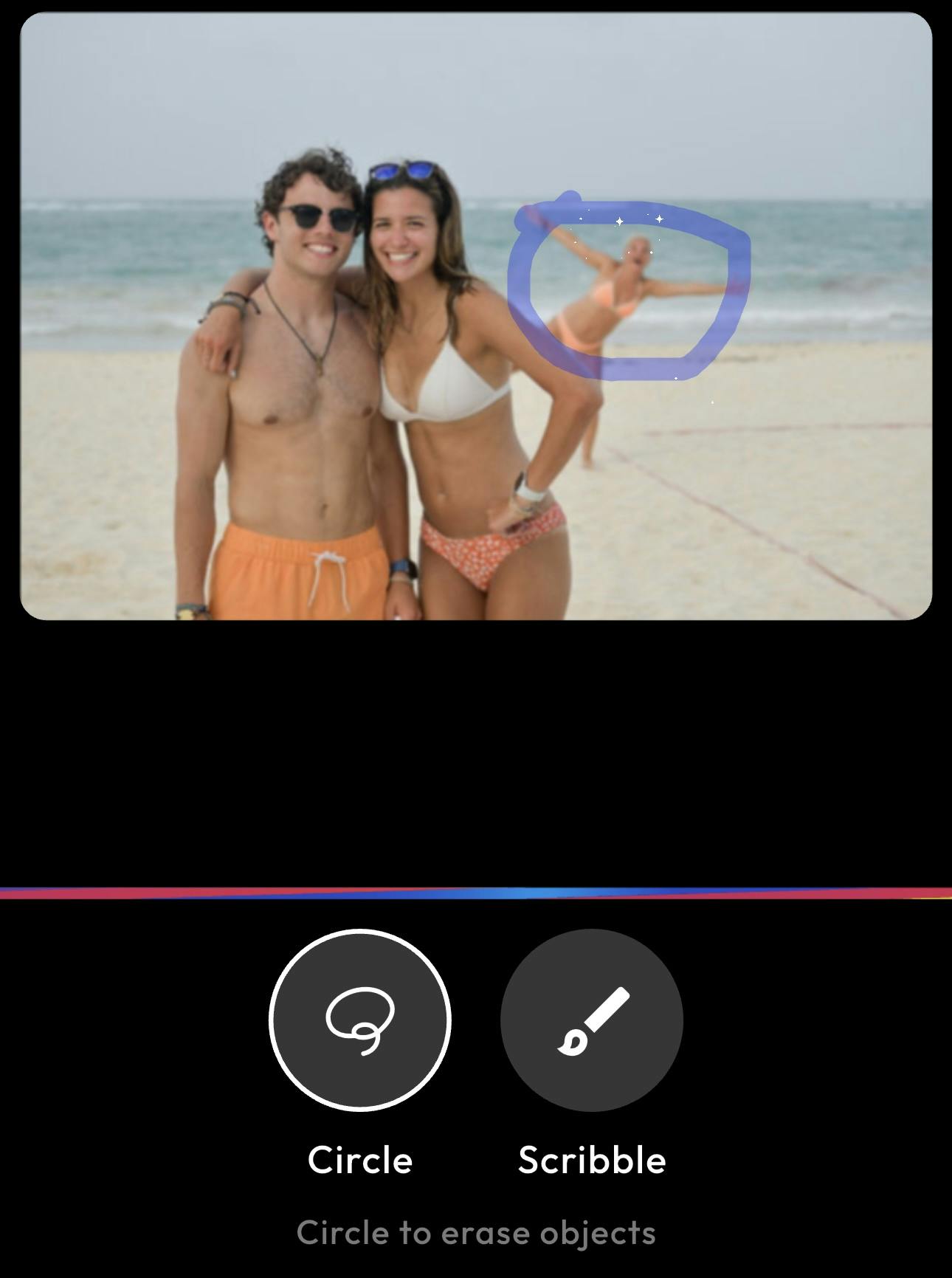
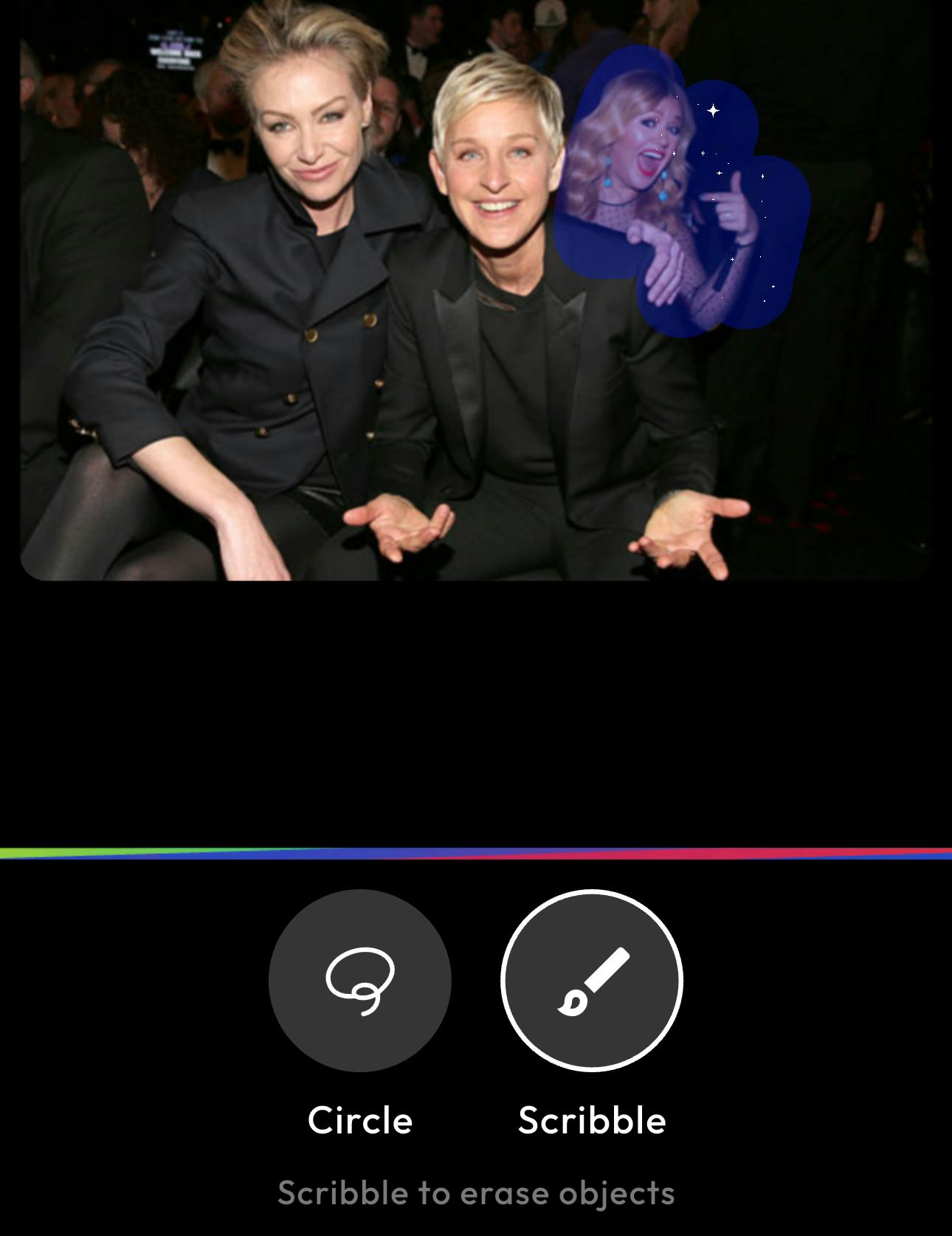
Circle for Speed:
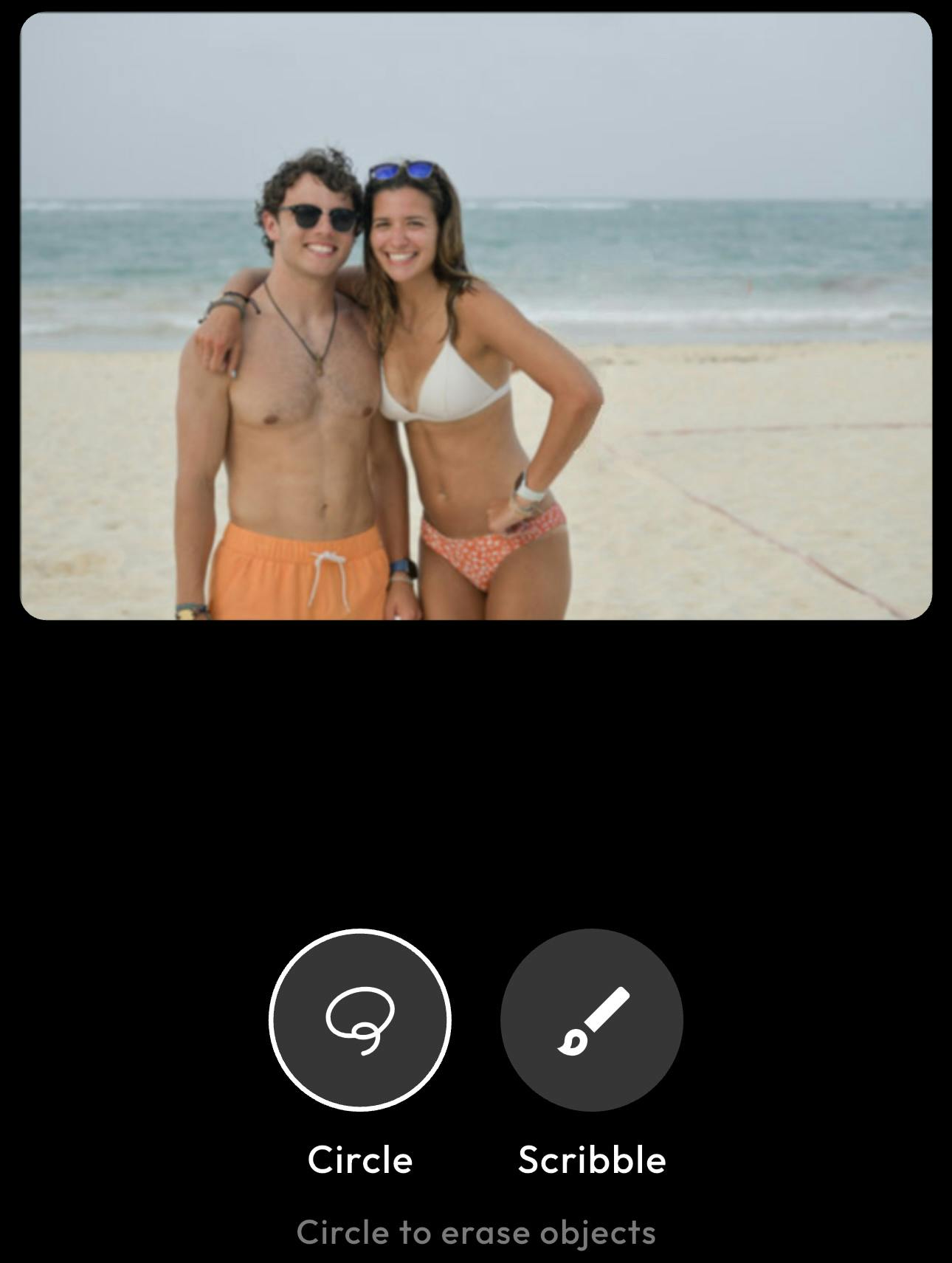
If the person in the background is clearly visible, choose Circle and draw around them. It doesn’t have to be perfect. All you have to do is draw a quick outline. The AI Magic Eraser will understand what you are targeting and handle the rest. That’s how effective Blend is when it comes to removing people from pictures in seconds.
Before:
After:
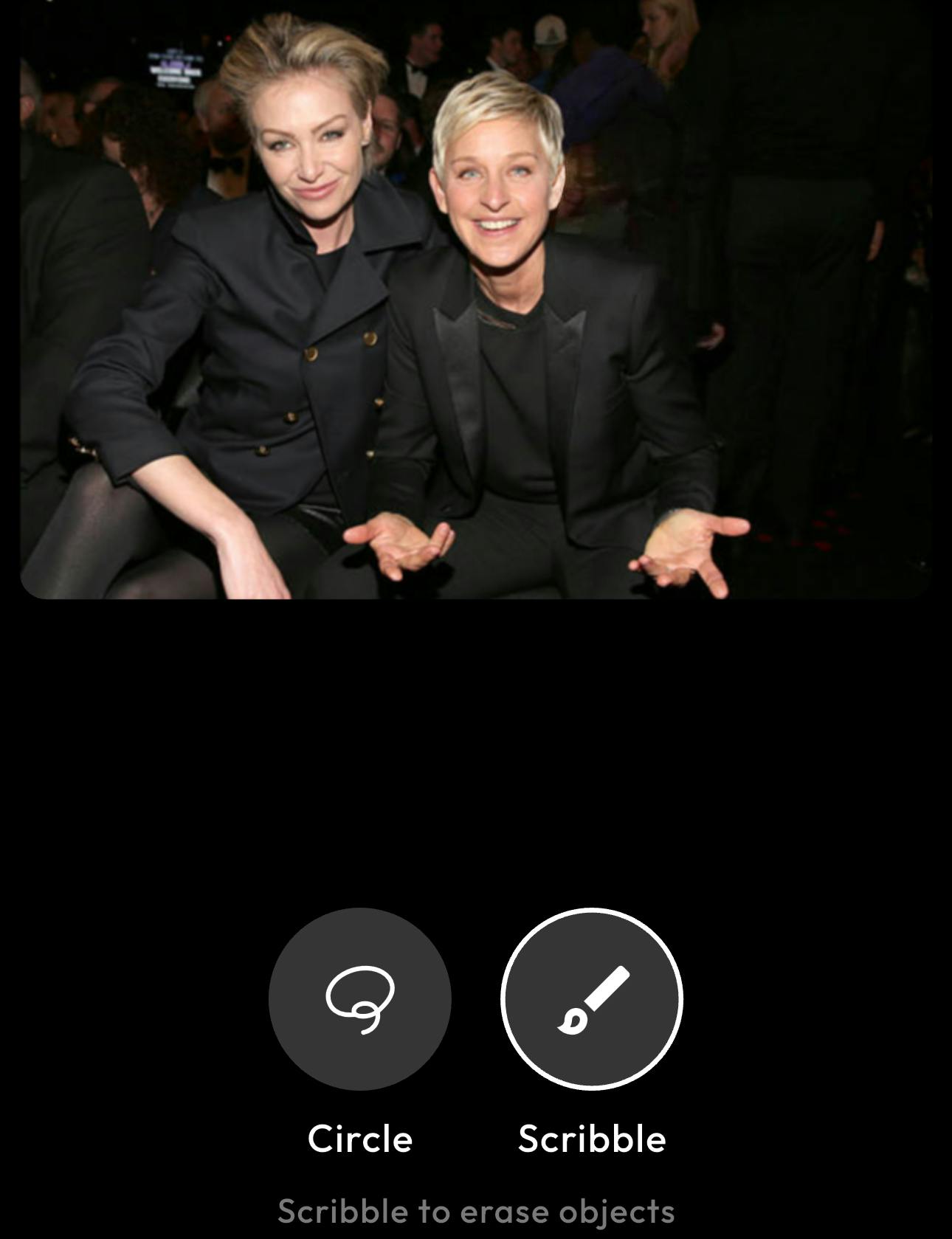
Scribble for Precision:
Let’s say you have a picture where a person is overlapping with something that you need in the picture. Then, removing them from the picture might get trickier. That’s when you can use the Scribble option.
Just brush over the unwanted subject. This gives you more control while the AI photo editing tool carefully rebuilds the background behind them.
Before:
After:
3. Slide to See the Before & After
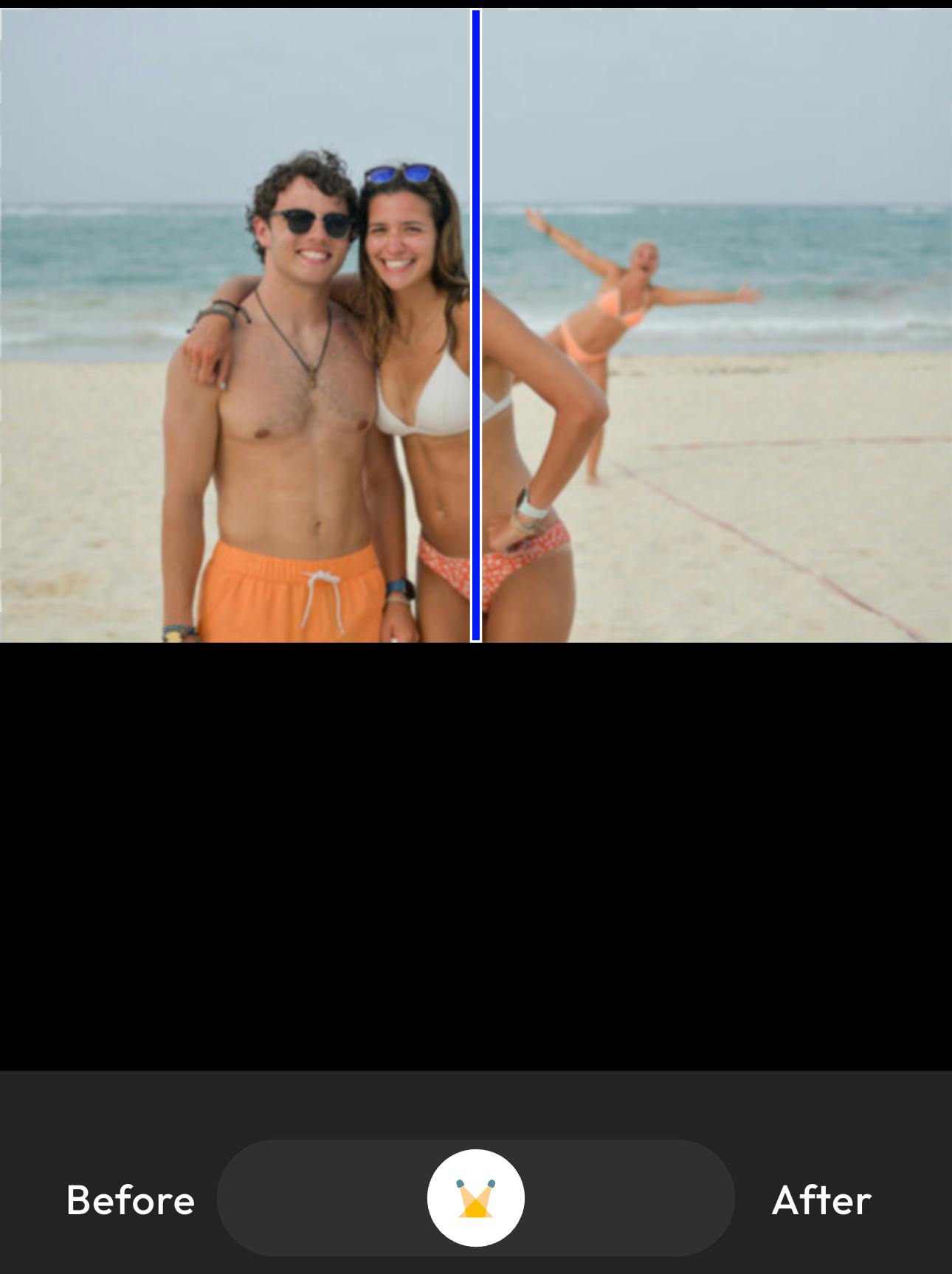
This is where you really see Blend’s magic. After using the Circle or Scribble tool to remove people from pictures, you can compare the results instantly using the before-and-after slider.
Simply drag the icon left to see the original image or drag it to the right to check the edited version. It’s a simple way to check how cleanly the AI people remover reconstructed the background.
4. Customize Your Edited Picture
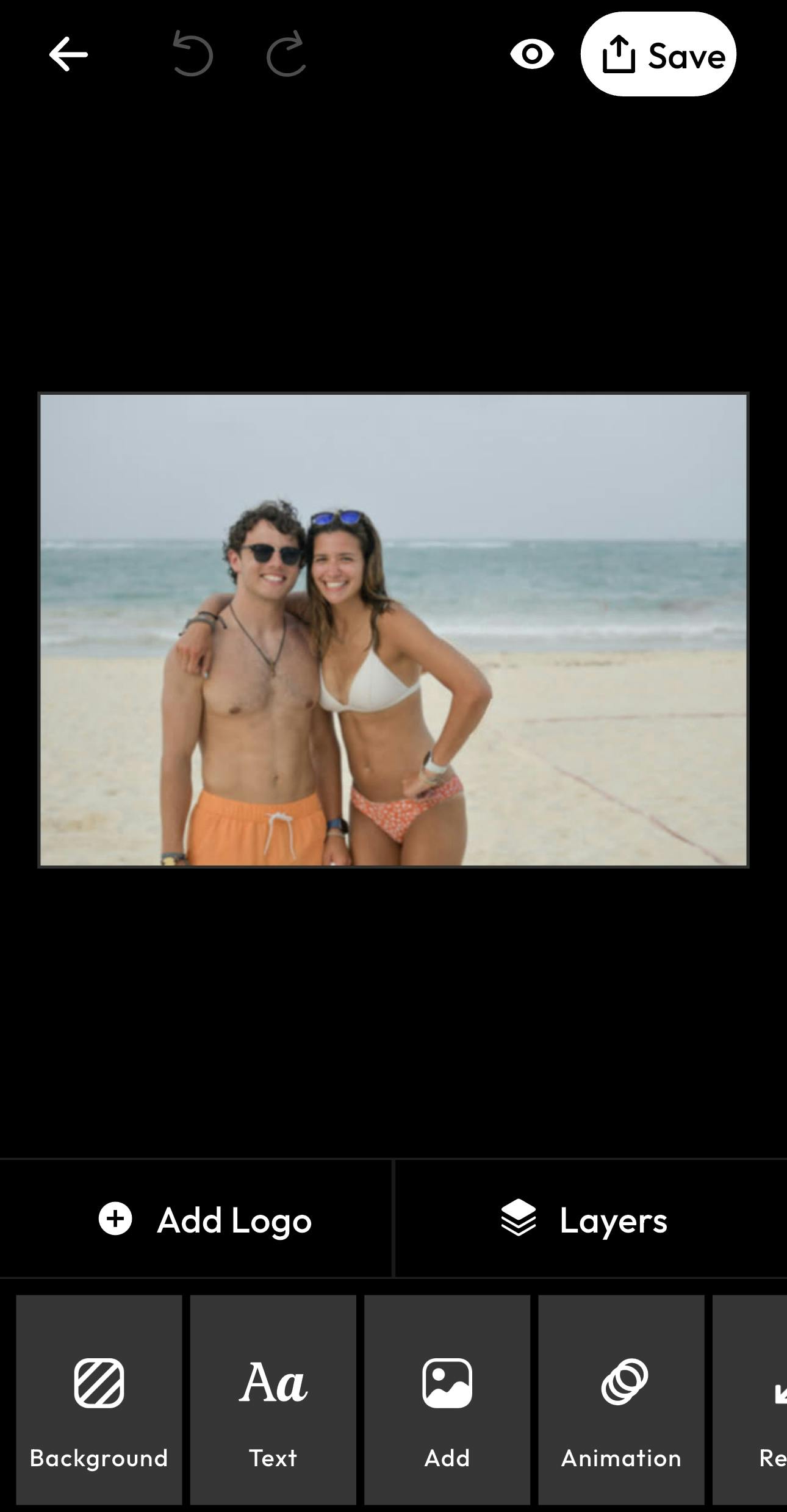
After you remove people from pictures using the AI people remover, you can refine and prepare your image with Blend’s built-in AI tools.
- Add Logo: Insert your brand logo for professional or e-commerce use.
- Layers: Control and organize design elements.
- Background: Adjust or replace the background for a cleaner look.
- Text: Add captions or marketing copy.
- Add: Insert icons or additional images.
- Animation: Create motion effects for digital content.
- Resize: Instantly format your image for social media, ads, or web.
These tools make it easy to go from automatic people removal from photos to a fully polished, ready-to-share image.
Conclusion
If you’ve been wondering how to remove people from pictures without learning complex photoshop skills, Blend has made the process accessible to everyone. It provides an easy solution for removing people from the background, cleaning up distractions, and creating professional-grade visuals in minutes.
FAQs
Can I remove multiple people at once?
Yes. Most advanced tools allow you to highlight multiple individuals before processing the edit.
Does removing people reduce image quality?
A strong AI photo editing tool preserves overall image resolution and texture.
Is Blend better than Photoshop?
For most users, yes. Traditional editing requires manual cloning and advanced skills. AI tools dramatically reduce time and complexity.
Can I remove people from the background only?
Yes. You can target only background subjects while preserving the main focus of the image.